Sometimes you don’t need to move your whole music life — you just need this one playlist. The road-trip mix, the wedding playlist, the one your friend sent you that took an hour to curate. This is the fast, no-fuss version of the transfer: one playlist, five minutes, minimal reading.
The quickest method: Apple’s built-in transfer tool
Apple built playlist transferring directly into Apple Music, so there’s no third-party app or account needed for a single playlist move.
On iPhone or Android:
- Open the Apple Music app and tap your profile icon.
- Go to Transfer Music from Other Music Services.
- Choose Spotify and authorize access.
- Find the specific playlist you want (you don’t have to transfer everything — select just this one).
- Tap Add to Library.
On a computer: Use a browser and go to music.apple.com rather than the desktop Mac or Windows app — the transfer tool currently lives on the web player and mobile apps, not the installed desktop software. Sign in, click your profile icon, and follow the same steps.
That’s the whole process for most people. Apple matches each track to its own catalog automatically, and the playlist appears in your library, ready to play or download for offline listening.
What to check afterward
Two things worth a thirty-second glance once the transfer finishes:
The flagged-matches queue. Apple gives you a 30-day window to review any songs it wasn’t fully confident about — usually a live version substituted for a studio track, or a similarly named song from a different artist. Open this queue and swap out anything wrong.
Track count. Quickly compare the song count between the Spotify original and the new Apple Music version. A small gap (one or two songs) is normal — expect roughly a 90-95% match rate, since regional licensing and catalog differences mean not everything lines up perfectly. A big gap is worth investigating.
If a song won’t transfer
Occasionally a specific track just won’t come across — it might not be in Apple’s catalog in your region, or it’s a rare or independent release. Two options: search for it manually in Apple Music and add it to the playlist by hand, or accept the small gap if it’s not a song you’d miss.
If you want the playlist to survive independently of either service
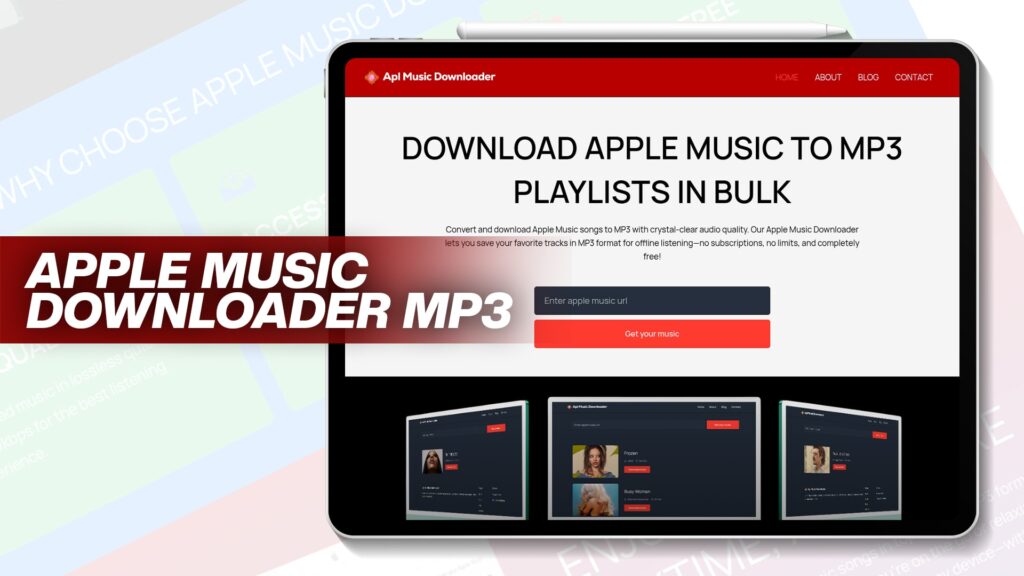
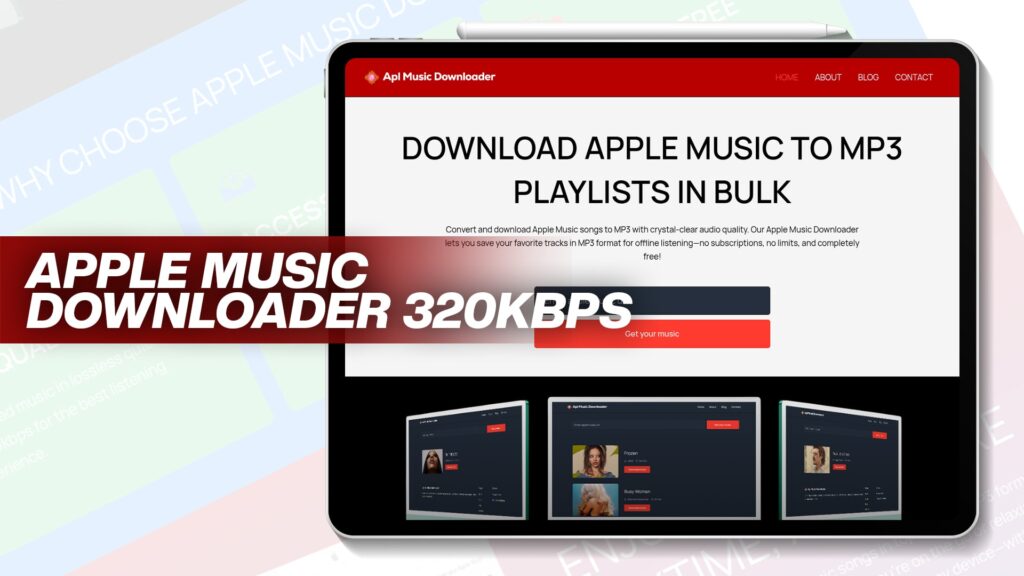
Worth a thought if this is a playlist you’d genuinely hate to lose. Once it’s live in Apple Music, those tracks are still streaming — dependent on your subscription and Apple’s catalog staying intact. If you want a version that plays no matter what happens to either service, converting the songs to MP3 files is the way to do that. A free tool like Apl Music Downloader saves Apple Music songs as MP3 with clear audio and no subscription — handy if this particular playlist matters enough to want a permanent, owned backup copy.
Common Questions
Do I need a third-party app to transfer one playlist? No. Apple’s own Transfer Music from Other Music Services feature, built into the app and the web player, handles single playlists without any extra software.
Why can’t I find the transfer option on my Mac? It currently lives on the web player (music.apple.com) and the mobile app, not the installed Mac or Windows desktop application. Use a browser instead.
Will the whole playlist transfer perfectly? Expect around a 90-95% match rate. Catalog and licensing differences mean a small number of tracks may not carry over exactly, and Apple flags uncertain matches for a 30-day review.
The bottom line
For a single playlist, Apple’s native transfer tool is genuinely the fastest option available — open the app or music.apple.com, authorize Spotify, pick your playlist, and you’re done in a few minutes. Just glance at the review queue afterward to catch anything that matched incorrectly, and you’re set.