Apple Music on Android is one of those things people assume won’t work well, then are pleasantly surprised by. Apple actually makes a proper Android app, it syncs your whole library, and it handles offline downloads and Android Auto without much fuss. But there’s more than one way to “download” Apple Music on an Android phone, and which one you want depends on a single question: do you want files that work only inside the app while you pay, or files you own outright and can play anywhere?
This guide covers both routes clearly. The official app method for subscribers, and the convert-to-MP3 method for anyone who wants to keep their music permanently or skip the subscription entirely. By the end you’ll know exactly which path fits you and how to set it up.
The two ways to get Apple Music on Android
Before the steps, get the distinction straight, because it saves a lot of confusion.
The first way is Apple’s own Android app. If you have an active Apple Music subscription, you install the app, sign in, and download songs for offline play. It works well, but those downloads are locked: they live inside the app, they need your subscription to stay active, and they vanish the moment you stop paying. You can’t copy them out as files.
The second way is to convert Apple Music tracks to MP3 and put those files on your Android phone. This gives you standalone files you own. They play in any music app, survive a cancelled subscription, transfer to other devices, and don’t depend on Apple’s app at all. The trade-off is that you do the conversion yourself.
Neither is “better” in the abstract. Subscribers who live inside the app are well served by the first. Anyone who wants permanence, portability, or freedom from monthly fees wants the second. Let’s do both.
Method 1: The official Apple Music app (for subscribers)
If you pay for Apple Music, this is the simplest path and it works on essentially any modern Android phone.
- Open the Google Play Store and search for Apple Music. Install the official app from Apple.
- Sign in with the Apple ID tied to your subscription. Your entire library — playlists, albums, saved songs — syncs over automatically, the same collection you’d see on an iPhone or Mac.
- Find the song, album, or playlist you want offline. Tap the download icon the little downward arrow or the “+” then download, depending on your app version.
- Wait for the download to finish. Once it’s saved, you can play it without a connection.
The app supports Android 5.0 and up, works with Android Auto for in-car listening, and can stream Apple’s higher-quality tiers, including lossless audio up to 24-bit/192 kHz and Dolby Atmos spatial audio on compatible hardware. Your downloads sync across every device signed in with the same Apple ID, so a playlist you saved on your iPhone is already there on your Android phone.
The catch, again: these downloads are DRM-protected. They only play inside the Apple Music app, only while your subscription is active, and you can’t move them to another device as files. The day your subscription lapses, they stop working. That limitation is exactly why the second method exists.
Method 2: Download Apple Music as MP3 (keep it forever)
This is the route for anyone who wants real ownership — music that doesn’t disappear when billing stops, plays in any app, and moves freely between devices. The idea is to convert Apple Music tracks into standalone MP3 files, then transfer them to your Android phone.
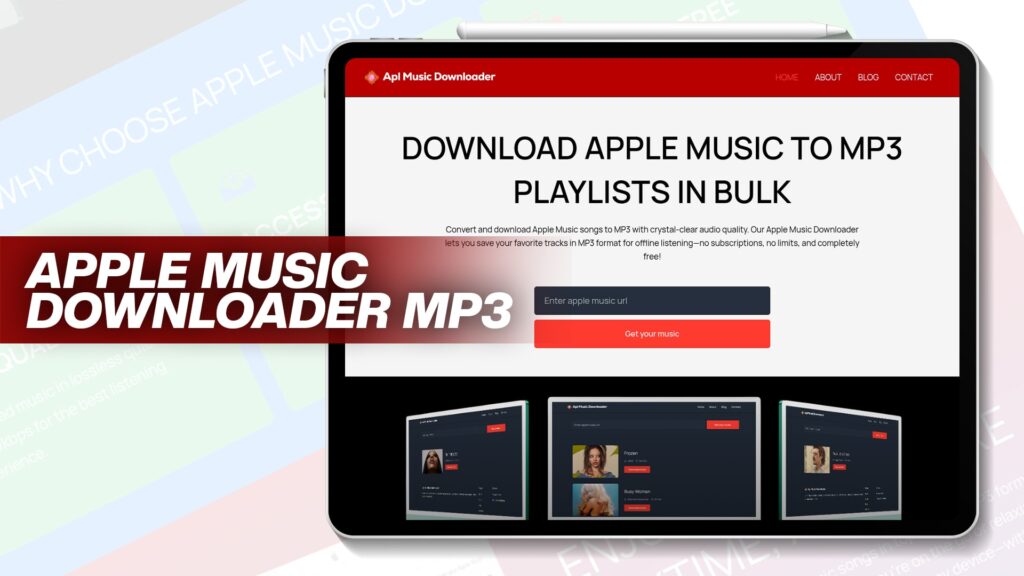
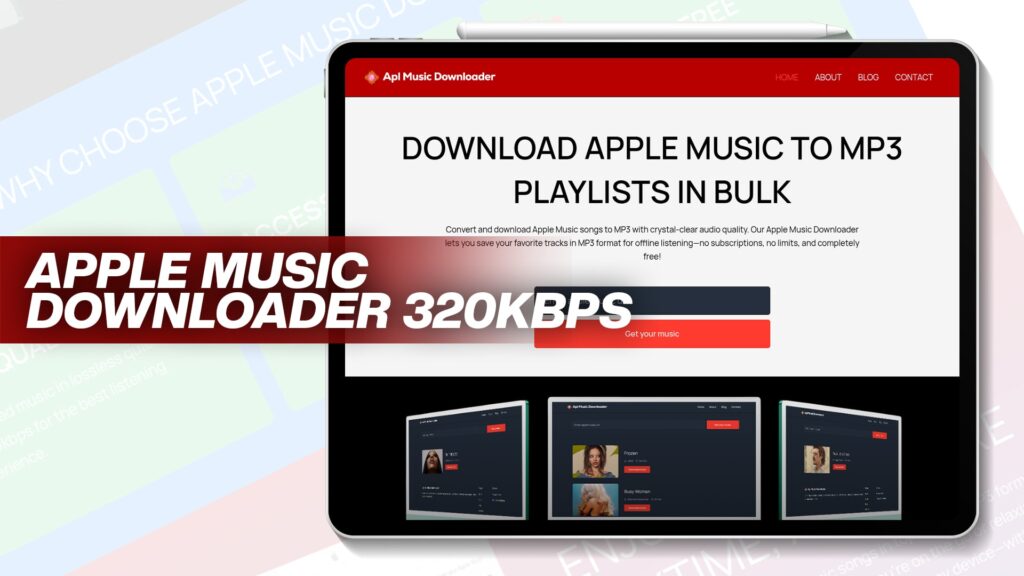
Because Apple Music tracks are protected, you can’t just export them from the app. You need a converter to create the unprotected MP3. A free option like the Apple Music to MP3 downloader saves Apple Music songs as MP3 with clear audio quality, no subscription, and no limits, which covers the common case of just wanting portable files. The general workflow looks like this:
- Copy the link of the song, album, or playlist. In Apple Music, tap the three-dot menu, choose Share, then Copy Link.
- Paste that link into the converter.
- Choose MP3 as the output and set the bitrate as high as it allows, ideally 320 kbps.
- Let it process. Good tools handle a whole playlist in one batch rather than making you do songs individually.
- Save the MP3 files to your computer or directly to your phone’s storage.
Once you’ve got the files, getting them onto Android is the easy part, which is one of Android’s real advantages.
Putting the MP3 files on your Android phone
Android treats music files like any other files, so there’s no walled-garden hassle. A few ways to move them over:
USB cable. Plug your phone into a computer, set it to file-transfer mode, and drag the MP3 folder into the phone’s Music directory. Done.
Cloud storage. Upload the files to Google Drive, Dropbox, or similar, then download them on your phone. Handy if you don’t have a cable nearby.
Direct download. If you used a browser-based converter on your phone, the MP3 may save straight to your Downloads folder, ready to play.
After the files are on the phone, any music player app — the built-in one, or something like Poweramp or VLC — will find and play them. No subscription, no Apple Music app, no connection required.
Why bother converting if the app already works?
Fair question, and the answer is ownership versus access. The official app gives you access: it works as long as you pay. Converting to MP3 gives you ownership: the files are yours regardless.
There are a few concrete reasons people choose the MP3 route. They want to keep music after cancelling a subscription. They want to play tracks in apps Apple Music can’t reach — DJ software, video editors, game consoles, and older devices. They want a backup that doesn’t depend on a company’s servers or licensing deals. Or they simply don’t want a recurring bill. The benefits are worth weighing, and this breakdown of the advantages of converting Apple Music to MP3 lays them out if you’re on the fence.
There’s also the disappearing-track problem. Streaming catalogs change constantly; songs get pulled over licensing disputes all the time. A track you love today might be gone from Apple Music next year. An MP3 sitting in your phone’s storage doesn’t care about any of that.
Getting the quality right
Whichever conversion tool you use, a few habits keep your Android library sounding good:
Aim for 320 kbps MP3. It’s the highest standard MP3 bitrate and sounds transparent to most listeners on typical earbuds and car systems. Lower defaults like 128 kbps save space, but you’ll hear the difference on decent headphones. If a tool lets you choose, a proper 320 kbps Apple Music download is the setting to pick.
Start from the best source. Converters can only work with the quality they’re given. Pulling from a clean, high-quality source matters more than any single setting.
Keep your tags. Make sure the title, artist, album, track number, and cover art carry over. A converter that strips metadata leaves you with a folder of nameless files that’s miserable to browse on a phone. Confirm tag retention is on before you batch a big library.
Use a reliable tool. Plenty of sketchy converter sites cap bitrate quietly, bury you in pop-ups, or hand back the wrong version of a song. If you’d rather compare before committing, this rundown of the best free Apple Music to MP3 converters weighs the options on speed, quality, and safety.
A note on Apple Music’s protection and the law
Worth being upfront. Apple Music tracks are wrapped in FairPlay DRM, which is why the app’s own downloads can’t be exported. Converting them creates a new, unprotected file, and that’s a different thing from copying one the app hands you. There’s a clear explanation of how this works in this guide to converting protected Apple Music to MP3.
On legality: converting music for your own personal, offline use generally sits in a different category from sharing or redistributing it, and Apple’s terms of service set their own rules separate from copyright law. The sensible approach is to keep any conversions strictly for yourself, never sell or share them, and understand the rules where you live. Treat saved tracks like a personal copy for your own ears.
Common Question asked by Users
Does Apple Music have an official Android app? Yes. Apple publishes a full Apple Music app on the Google Play Store. Sign in with your Apple ID and your library syncs, including playlists and offline downloads, on Android 5.0 and newer.
Can I download Apple Music on Android without a subscription? Not through the official app — offline downloads there require an active paid subscription. To keep music without a subscription, convert tracks to MP3 and transfer the files to your phone.
Will my Apple Music downloads work if I cancel my subscription? The app’s downloads stop working once your subscription ends, because they’re DRM-locked. Converted MP3 files, by contrast, are standalone and keep playing regardless of subscription status.
What’s the best format for Android? MP3 at 320 kbps is the safe, universal choice that plays in any Android music app and on any device. AAC also works on modern Android, but MP3 removes all compatibility doubt.
Does Apple Music on Android support Android Auto? Yes, the official app works with Android Auto for in-car playback. If you’ve converted tracks to MP3, those also play through any local-music app that supports Android Auto.
The bottom line
Getting Apple Music onto your Android phone comes down to which kind of “download” you want. If you’re a subscriber happy to live inside Apple’s app, install it from the Play Store, sign in, and tap download — simple, polished, and tied to your subscription.
If you want music you actually own — files that survive a cancelled plan, play in any app, and don’t vanish when a track leaves the catalog — convert your Apple Music to MP3, aim for 320 kbps, keep your tags, and copy the files to your phone. Android makes that last step painless, which is part of why it’s such a friendly home for a personal MP3 library. Pick the path that matches how you want to listen, and you’re set.