These two watches get lumped together in searches, but they deserve very different answers — and one of those answers is genuinely bad news that almost no guide will tell you plainly. So let’s be direct up front:
On a Samsung Galaxy Watch: yes, you can get your Apple Music library onto the watch and play it offline without your phone. It takes a workaround, but it works well.
On a Fitbit: no, not on any current model. Fitbit removed music storage entirely from its watches back in 2023. This isn’t a workaround problem — the capability is gone from the hardware’s software.
If you own a Fitbit and came here hoping for a clever trick, the honest answer is that there isn’t one, and knowing that now saves you an afternoon of searching. Below is the full picture on both, including what Fitbit owners can actually do and the complete Galaxy Watch method.
The Fitbit situation: what happened
This is worth explaining, because Fitbit users are often confused about why a feature they remember no longer exists.
Fitbit watches used to store music. The Versa, Versa 2, Versa 3, Ionic, and original Sense could hold tracks and play them through Bluetooth earbuds, phone-free — and you could transfer your own music files from a computer using the Fitbit Connect desktop app.
Then Fitbit dismantled it in stages. In October 2022, Fitbit discontinued Fitbit Connect, which removed the ability to transfer your own music files from a PC or Mac. That left only two ways to get music on a Fitbit: paid Deezer or Pandora subscriptions. Then in March 2023, Fitbit dropped Deezer and Pandora support too — and not just for new downloads. Anything users had already downloaded through those apps stopped playing.
The newer models went further. The Versa 4 and Sense 2 shipped with no music storage at all, no Wi-Fi, and no third-party app support. The direction is clear: Fitbit repositioned its watches as pure fitness trackers, pushing anyone who wants a real smartwatch toward the Google Pixel Watch instead.
What Fitbit owners can actually do?
Given all that, here are the honest options:
Control your phone’s playback. Most Fitbits can still act as a remote for music playing on your paired phone — play, pause, skip, volume. Your Apple Music plays from the phone; the watch just controls it. This works fine, but it means carrying your phone, which defeats the point for runners.
Use a different watch for phone-free music. If offline, phone-free music matters to you, a Fitbit isn’t the device for it anymore, and no software trick changes that. A Galaxy Watch, a Pixel Watch, a music-capable Garmin, or an Apple Watch all do it. That’s a purchase decision, not a workaround.
Legacy device caveat. If you own an older Fitbit that still has music sitting on it from before the shutdown, that music may still play — but you can’t add to it. It’s a frozen library.
I’d rather tell you this plainly than walk you through steps that end in disappointment. Now for the watch where this genuinely works.
The Galaxy Watch situation: no app, but a real solution
Samsung’s Galaxy Watch has no official Apple Music app either — not on the older Tizen models, and not on the Wear OS models (Watch 4 and later). Wear OS supports Spotify, YouTube Music, Amazon Music, Deezer, and SoundCloud, but Apple has never shipped a Wear OS version of Apple Music. Searching the Play Store from your watch will come up empty.
The reason is the same one that blocks Garmin: Apple Music’s FairPlay DRM locks streaming tracks to Apple’s own apps. Without an Apple app on the watch, there’s nothing to decrypt them.
But — and this is the important part — Galaxy Watches play local audio files. Samsung provides the Music for Galaxy Watch app (for Watch 4 series and later on Wear OS), which plays files transferred to the watch’s own storage, supporting MP3, M4A, AAC, and OGG formats. Transfer files there and they play through Bluetooth earbuds with no phone, no subscription check, and no connection.
So the method is: convert your Apple Music to MP3, then push those files to the watch. Here’s how.
Step 1: Convert your Apple Music tracks to MP3
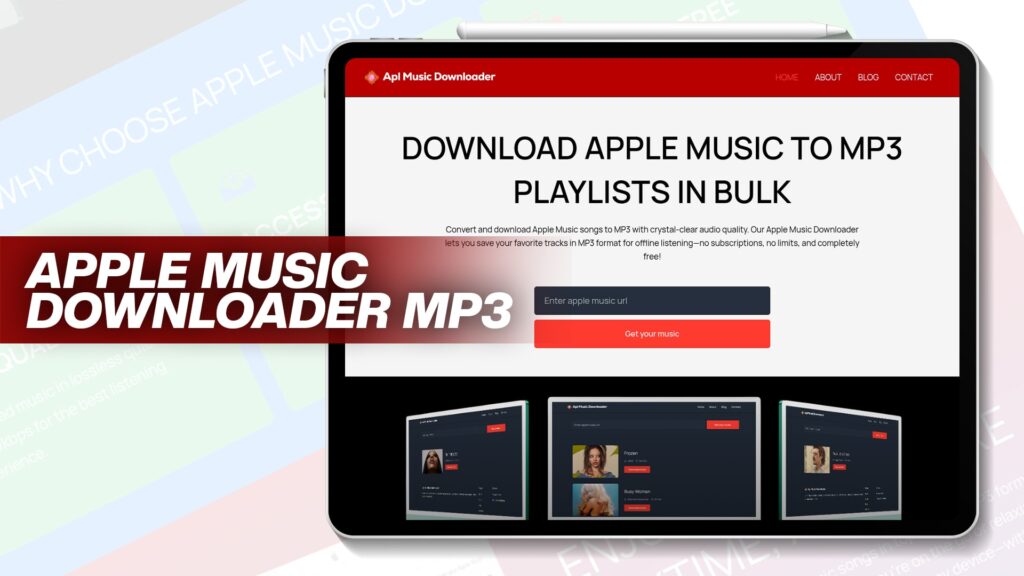
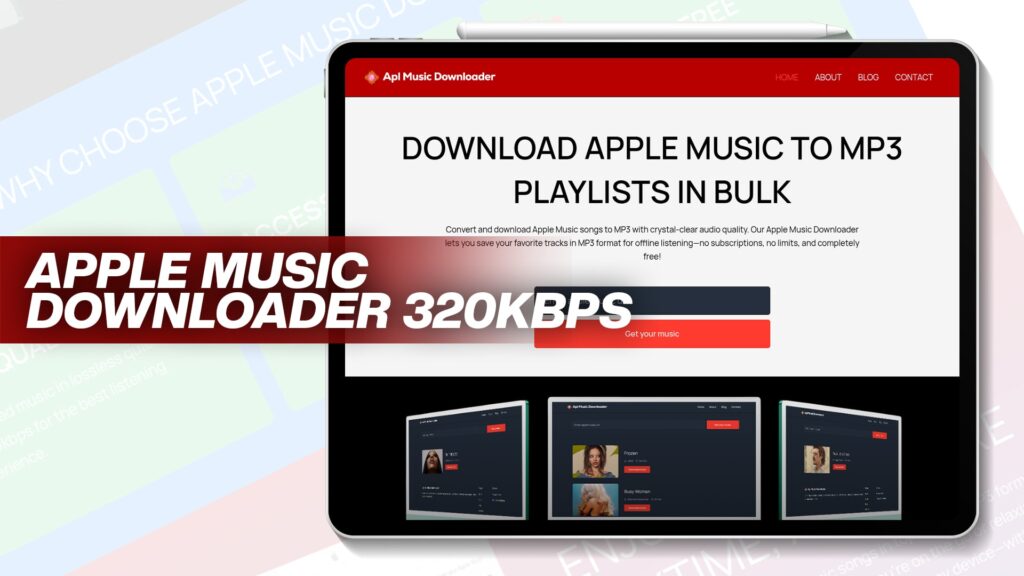
Because the streaming tracks are protected, a converter is needed to produce standalone files. A free tool like Apl Music Downloader saves Apple Music songs as MP3 with clear audio and no subscription:
- In Apple Music, open the song, album, or playlist and choose Share, then Copy Link.
- Paste the link into the converter.
- Select MP3 as the output format.
- Set the bitrate (more on this below).
- Save the files to your computer or phone.
Keep metadata and artwork enabled so the watch displays proper track names instead of filenames. The DRM layer that makes this necessary is explained in this guide to protected Apple Music, and if you want to compare converters first, this roundup covers the best free Apple Music to MP3 tools.
Bitrate: think like a watch, not a stereo
A quick practical note. On a computer, 320 kbps is the natural pick — top MP3 quality, storage is free. On a smartwatch, storage is tight and you’re listening through Bluetooth earbuds during a workout.
Bluetooth compresses audio in transit anyway, and gym or street noise erases subtle differences. 256 kbps fits noticeably more tracks with no audible penalty in those conditions. If you’ve got space to spare, 320 is fine. Just don’t assume maximum bitrate is automatically the right call on a device with a few gigabytes of storage.
Step 2: Get the files onto your Galaxy Watch
The Galaxy Wearable app on your phone is the hub for this:
- Make sure the converted MP3 files are on your Android phone — connect the phone to your computer via USB in File Transfer mode and copy them into the phone’s Music folder (or use cloud storage, then download them on the phone).
- Open the Galaxy Wearable app on the phone.
- Go to Watch settings, then find Add content to your watch (sometimes under a Manage content or Music section, depending on your version).
- Choose Add tracks, select your converted files, and confirm.
- Wait for the transfer to complete — this happens over Bluetooth or Wi-Fi and can take a few minutes for a large batch.
If you’re an iPhone user with a Galaxy Watch, the equivalent transfer path historically ran through Samsung’s Gear Music Manager, though the Android route is far smoother. Getting files onto an Android phone in the first place is straightforward; if you need the general approach for moving music between devices, this guide on transferring music without a computer covers the cable-free options.
Step 3: Play offline on the watch
- Open the Music app on the Galaxy Watch.
- Switch the source from your phone to the watch — this is the step people miss, and without it the watch just controls the phone.
- Pair your Bluetooth earbuds directly to the watch (in the watch’s own Bluetooth settings, not the phone’s). Galaxy Buds pair especially cleanly.
- Select your tracks and play.
Audio can also come out of the watch’s built-in speaker, which is useful in a pinch but not what you want for a run.
Now your Apple Music favorites play from your wrist with the phone left at home — exactly what the missing app would have given you, just arrived by a different road.
Why the MP3 route has real advantages
There’s an upside to this workaround worth appreciating. The files on your watch are plain MP3s you own, and that beats a streaming app in a few ways:
No subscription verification. Spotify’s offline downloads on a Galaxy Watch require an active Premium subscription to keep playing. Your MP3s play regardless of what you’re subscribed to, forever.
No refresh requirement. Streaming-app downloads periodically need to phone home to re-verify. Files just sit there.
Total portability. The same folder of MP3s works on a car USB drive, an old MP3 player, a Garmin, any future phone. Convert once, use everywhere. The broader case is laid out in this look at the benefits of converting Apple Music to MP3.
For a workout watch — a device you want to just work, without app drama mid-run — owned local files are genuinely the more dependable setup.
Quick comparison
| Fitbit (current models) | Galaxy Watch (Watch 4+) | |
|---|---|---|
| Official Apple Music app | No | No |
| Onboard music storage | No — removed in 2023 | Yes |
| Play your own MP3 files | No | Yes, via Galaxy Wearable |
| Phone-free music | No | Yes, with Bluetooth earbuds |
| Realistic option | Control phone playback only | Convert to MP3 and transfer |
A note on doing this responsibly
Converting music for your own personal, offline use generally sits in a different category from sharing or redistributing it, and Apple’s terms of service set their own rules separate from copyright law. Keep any conversions strictly for your own listening, never sell or share them, and follow the rules where you live.
Common Questions
Can I put Apple Music on a Fitbit? No. Fitbit removed all music storage from its watches in 2023, and the Versa 4 and Sense 2 shipped without the capability entirely. Fitbits can only control music playing on your paired phone.
Why did my Fitbit’s music feature disappear? Fitbit discontinued the Fitbit Connect transfer app in October 2022, then dropped Deezer and Pandora support in March 2023 — including previously downloaded content. The company repositioned its watches as fitness trackers.
Is there an Apple Music app for Galaxy Watch? No. Neither Tizen nor Wear OS has an official Apple Music app. Wear OS offers Spotify, YouTube Music, Amazon Music, and others, but not Apple Music.
How do I get music onto a Galaxy Watch? Convert your Apple Music tracks to MP3, put the files on your Android phone, then use the Galaxy Wearable app’s “Add content to your watch” option to transfer them. The watch’s Music app plays MP3, M4A, AAC, and OGG.
Do I need my phone once the music is on the Galaxy Watch? No. Set the Music app’s source to the watch, pair Bluetooth earbuds directly to the watch, and the music plays from its own storage — phone-free.
The bottom line
Two watches, two very different answers. Fitbit is a dead end for offline music — the feature was removed in 2023, current models never had it, and no workaround brings it back. If phone-free music matters to you and you own a Fitbit, the real solution is a different watch, and it’s better to hear that plainly than to keep searching.
The Galaxy Watch works. There’s no Apple Music app, but there doesn’t need to be: convert your favorites to MP3, transfer them through Galaxy Wearable, pair your earbuds to the watch, and your Apple Music library plays from your wrist with the phone left behind. Twenty minutes of setup, and the files are yours permanently — no subscription check, no refresh, no expiry.